

·
10 min read
On this page
TL;DR: Antigravity CLI has no persistent memory. Add the Mem0 MCP server in 4 lines of JSON and your CLI will remember your project stack, preferences, and decisions across every session automatically. Setup takes just 3 minutes.
You tell Antigravity your project stack on Monday. On Tuesday, the new terminal has no idea. You paste the context again. Every session. That's the default Antigravity experience, and it gets old fast.
This is the default Antigravity experience, and it's the kind of friction that sounds minor until you're doing it every single day. Context-pasting is the developer tax nobody talks about. Every session you pay for it, and every session the tool starts from zero.
The fix exists.
Antigravity supports MCP extensions. Mem0 has a native MCP server. Combining both gives Antigravity special powers to remember your project architecture, your preferences, your decisions: across every session, every terminal window, every machine. That's what persistent memory infrastructure looks like in practice.
Why Antigravity Forgets (and Why the Usual Workarounds Don't Stick)
History ≠ Memory.
Antigravity keeps session logs: a transcript you scroll through manually. That's history.
Memory is different: it's context that surfaces automatically when relevant. Antigravity has the first. It doesn't have the second.
Also, the manual workarounds all break eventually:
/startfiles: you write them once, forget to update them, and they're wrong by week two. They also don't follow you to a new machine.Custom scripts: fragile, not portable, and you're maintaining them instead of shipping code.
Copy-pasting context: what most people actually do. It works until it doesn't.
MCP is Antigravity's official extension mechanism. It's the right path here: no hacks, no workarounds. And Mem0 ships a native MCP server that connects in minutes.
Migrating from Gemini CLI? Google is sunsetting Gemini CLI on June 18, 2026. Antigravity CLI is the official successor. If you had a memory workflow set up in Gemini CLI, this guide is the fastest way to replicate it in Antigravity with a cleaner, more stable setup than whatever you had before.
What You'll Build
By the end of this guide, you'll have Antigravity CLI connected to Mem0 MCP. Your terminal will go from this:
To this:
Prerequisites:
Antigravity CLI installed: https://www.antigravity.google/download#antigravity-cli
Mem0 account: free tier works (get your free API key)
uvxinstalled: comes withuv. Runpip install uvif you don't have it yet.
🔑 Get your Mem0 API key free: app.mem0.ai. No credit card required.
Step 1: Install Antigravity CLI
If you already have Antigravity installed, skip ahead to Step 2.
For everyone else, the install is a single curl command:
Run that, and you'll see the installer detect your platform, pull the latest release, and configure your shell environment automatically.
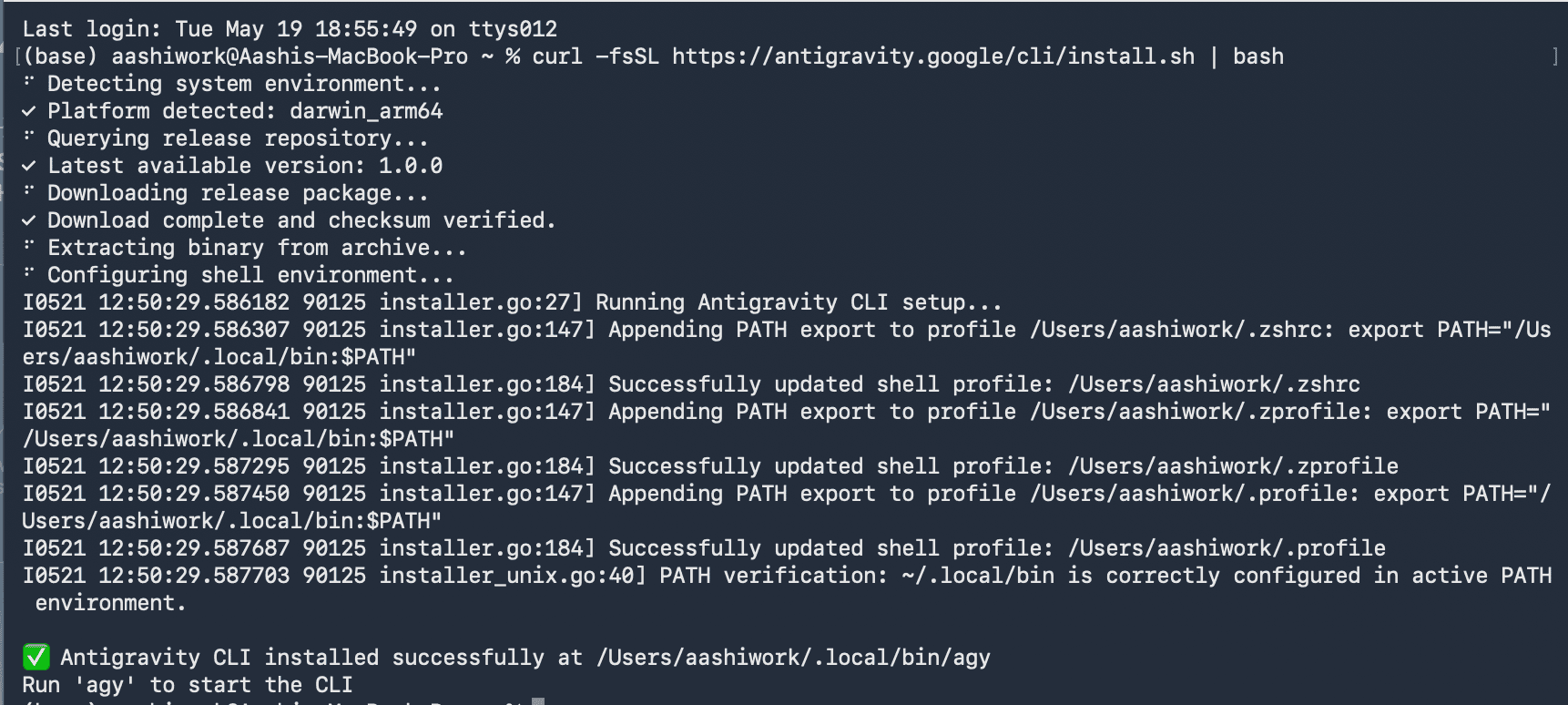
The installer handles the PATH export for you across .zshrc, .zprofile, and .profile. Once it finishes, run agy to launch the CLI.
The first-run setup asks you to authenticate via the Google account of a GCP project. Then, pick a colour scheme and walks you through a quick onboarding (takes about 30 seconds).
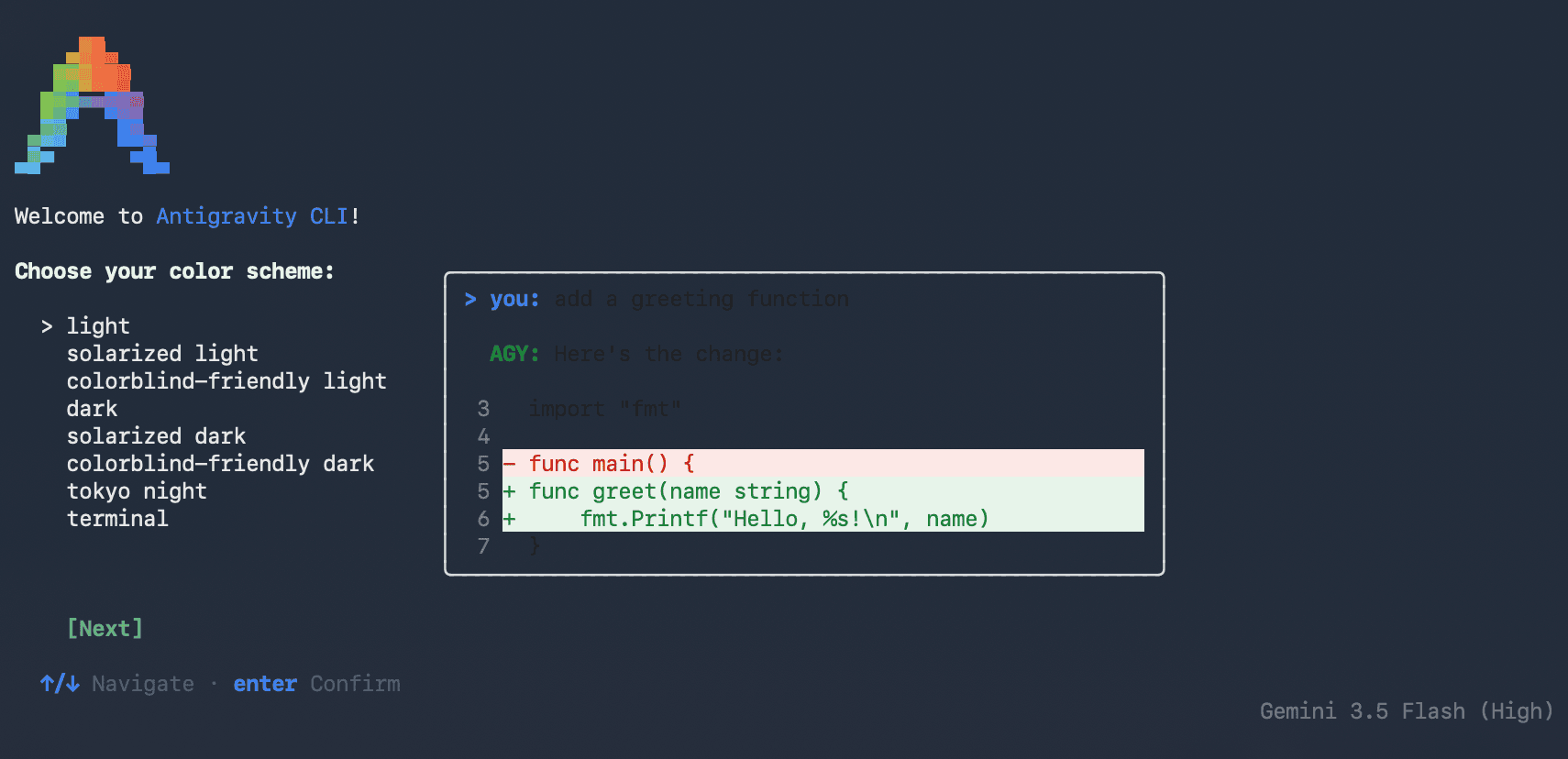
The CLI runs on Gemini 3.5 Flash (High) by default, shown in the bottom-right corner of every session. That context is worth keeping in mind as you use it: the model choice affects how well it responds to implicit cues like the memory Mem0 provides.
Step 2: Get Your Mem0 API Key
Mem0 is free to start.
Go to app.mem0.ai and sign up for free (No credit card required)
Then, go to Dashboard and select the API Keys tab and click Create new key
Copy the key: it starts with
m0-Pick a user ID: your GitHub handle works perfectly. (Optional)
Step 3: Add Mem0 to Antigravity's MCP Config
This is where the actual work happens. First, find the MCP config file. The path depends on your OS:
macOS / Linux:
~/.gemini/antigravity-cli/mcp_config.jsonWindows:
C:\\Users\\<USERNAME>\\.gemini\\antigravity-cli\\mcp_config.json
You can also get there through the Antigravity settings: Settings > Customisations> Open MCP Config.
💡Note on the path: The config lives under
.gemini/antigravity-cli/. This is the confirmed legacy path carried over from the Gemini CLI migration. Don't change it — Antigravity reads from here by design.
The fastest way to create this file is to just ask Antigravity to do it for you. I typed:
“I want to set up Mem0 MCP via Antigravity so that I can use Mem0 as memory for every Antigravity session. Is there an existing directory like this? ~/.gemini/antigravity-cli/mcp_config.json"
Antigravity checked my filesystem, confirmed the directory existed, but the config file did not, and created it with the correct structure:
Whether you let Antigravity create it or do it manually, the config you want is this:
Replace YOUR_MEM0_API_KEY with the key you copied in Step 2. If you already have other MCP servers configured, add the mem0-mcp block inside your existing mcpServers object, but don't overwrite the file.
The uvx command comes with uv. If you don't have it yet, run pip install uv first.
Once the file is saved, open a new Antigravity session and run /mcp to verify the connection:
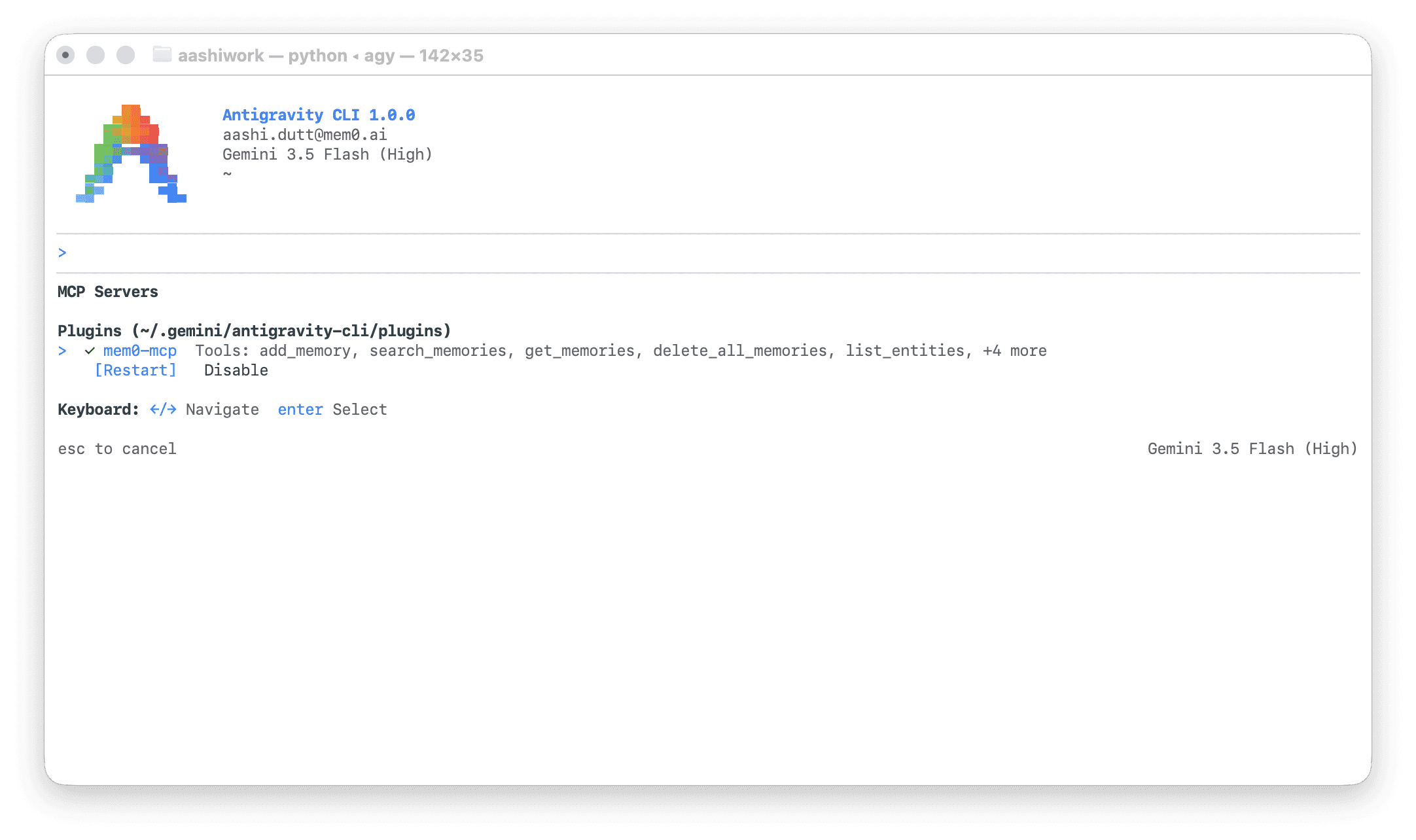
You should see mem0-mcp listed as a connected server with its full tool inventory: add_memory, search_memories, get_memories, delete_all_memories, list_entities, and more. If it shows as connected, you're done with setup. Everything that follows is Mem0 working in the background.
Note: You can use Antigravity as a debugger, in case mem0-mcp does not show up.
What the Before vs After Actually Looks Like
Theory is one thing. Here's what the difference looks like in practice, run on my own machine.
The Setup:
I ran the same task in two separate Antigravity sessions. One with mem0-mcp disabled, one with it enabled.
The task was starting a Next.js 14 project with TypeScript, Supabase, and Tailwind using the App Router pattern. I ended each session, opened a fresh terminal, and asked Antigravity to continue with the auth implementation.
Without Mem0 — Session 1:
I gave Antigravity the project context, and it helped me set up an implementation plan, creating the project directory on my Desktop under Mem0-Experiments. That session went fine. But the problem showed up in Session 2.
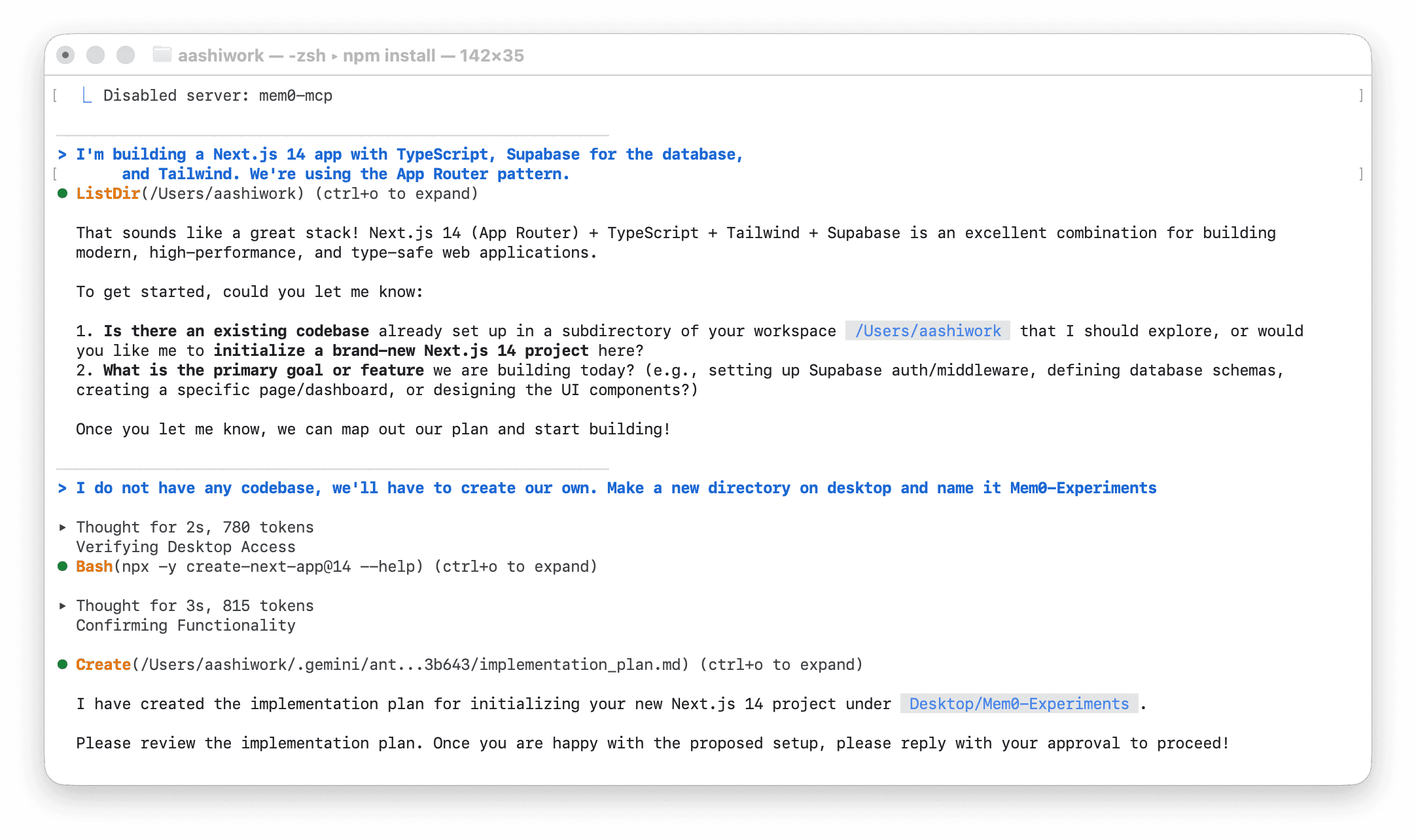
Without Mem0 — Session 2:
In the new terminal, I asked: "Let's continue with the auth implementation task for building a Next.js 14 app."
Antigravity had no idea where to start. It began systematically scanning my entire filesystem — calling ListDir on six different directories, running Read on multiple files, even tailing my .zsh_history to try to reconstruct what we'd been doing. It eventually found the right folder and produced a reasonable plan, but it spent a full scan cycle doing archaeology on my machine just to rediscover context it had already worked with in the session before.
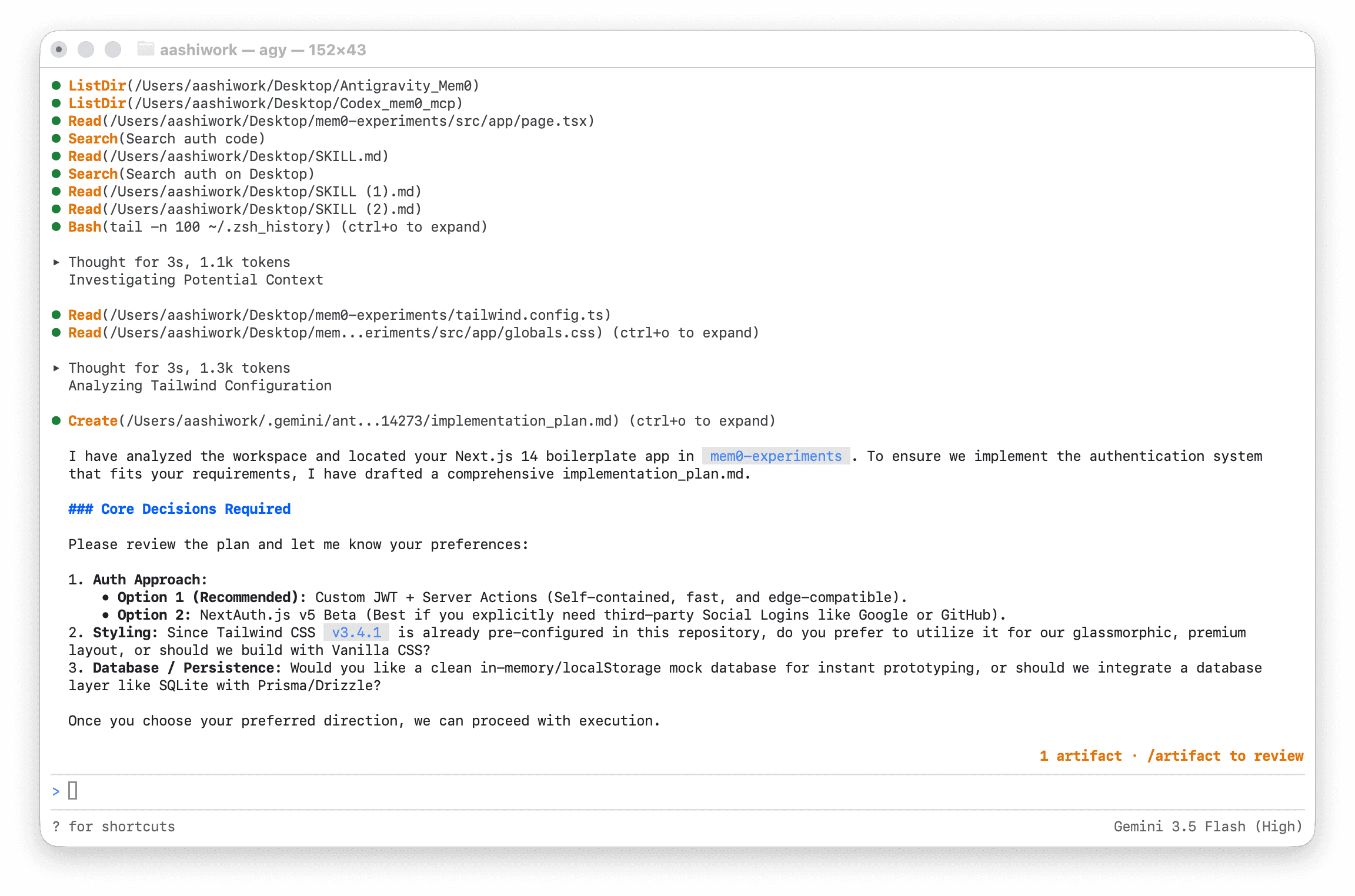
With Mem0 — Session 1:
Same task, same prompt, but this time mem0-mcp was enabled. Antigravity located the Mem0-Experiments folder on my Desktop, read the existing project files, and got oriented faster because it was also retrieving stored context about what I'd been working on.
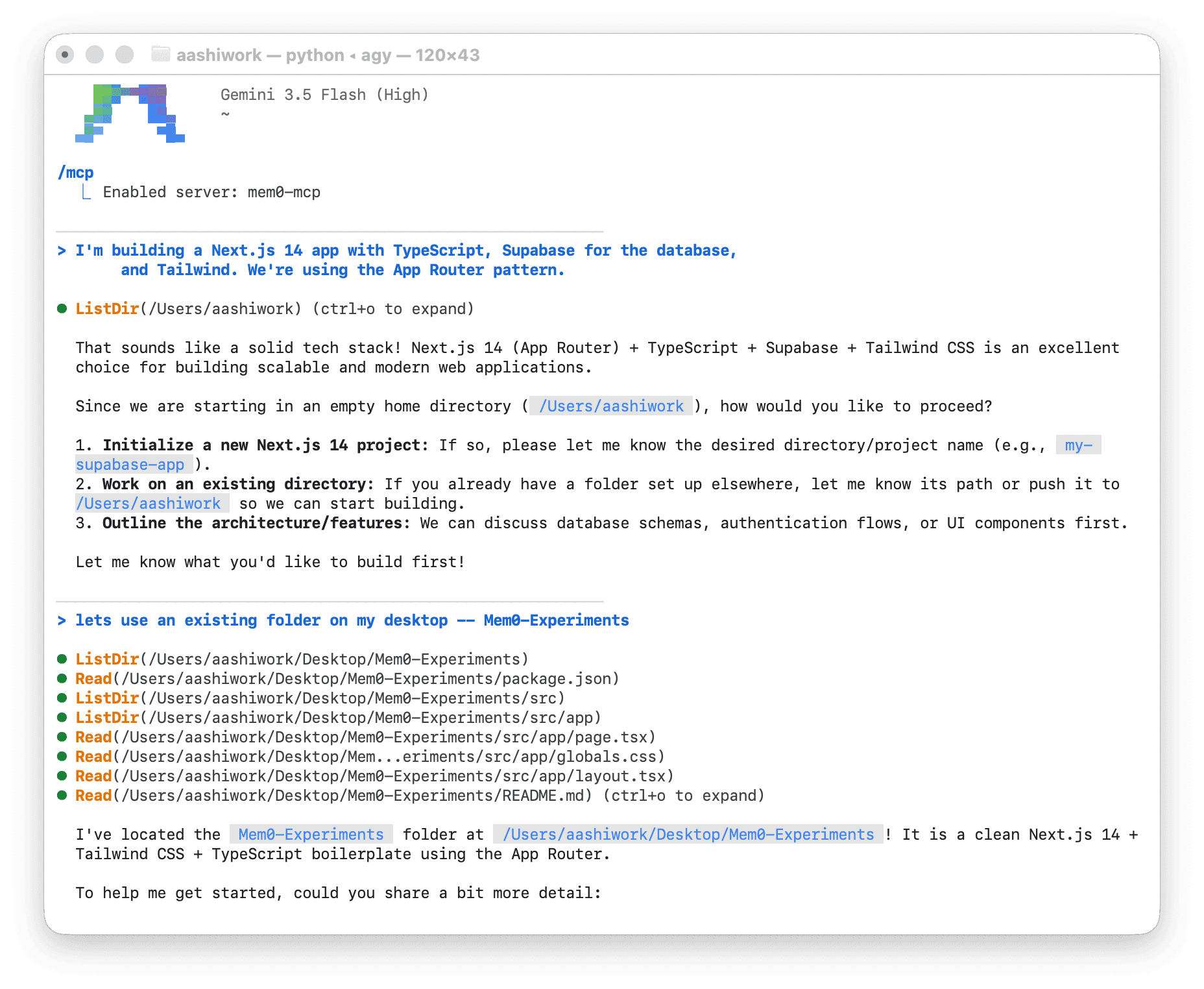
With Mem0 — Session 2:
In a new terminal, I asked: "Let's continue with the auth implementation task for building a Next.js 14 app. Do you remember which folder we were using? /mem0-mcp"
Antigravity went straight to /mem0-experiments folder. It didn't scan my history. It didn't enumerate six directories looking for context. It retrieved the stored memory, identified the active Next.js template, and immediately produced a structured authentication implementation plan with three concrete decision points for me to choose from.
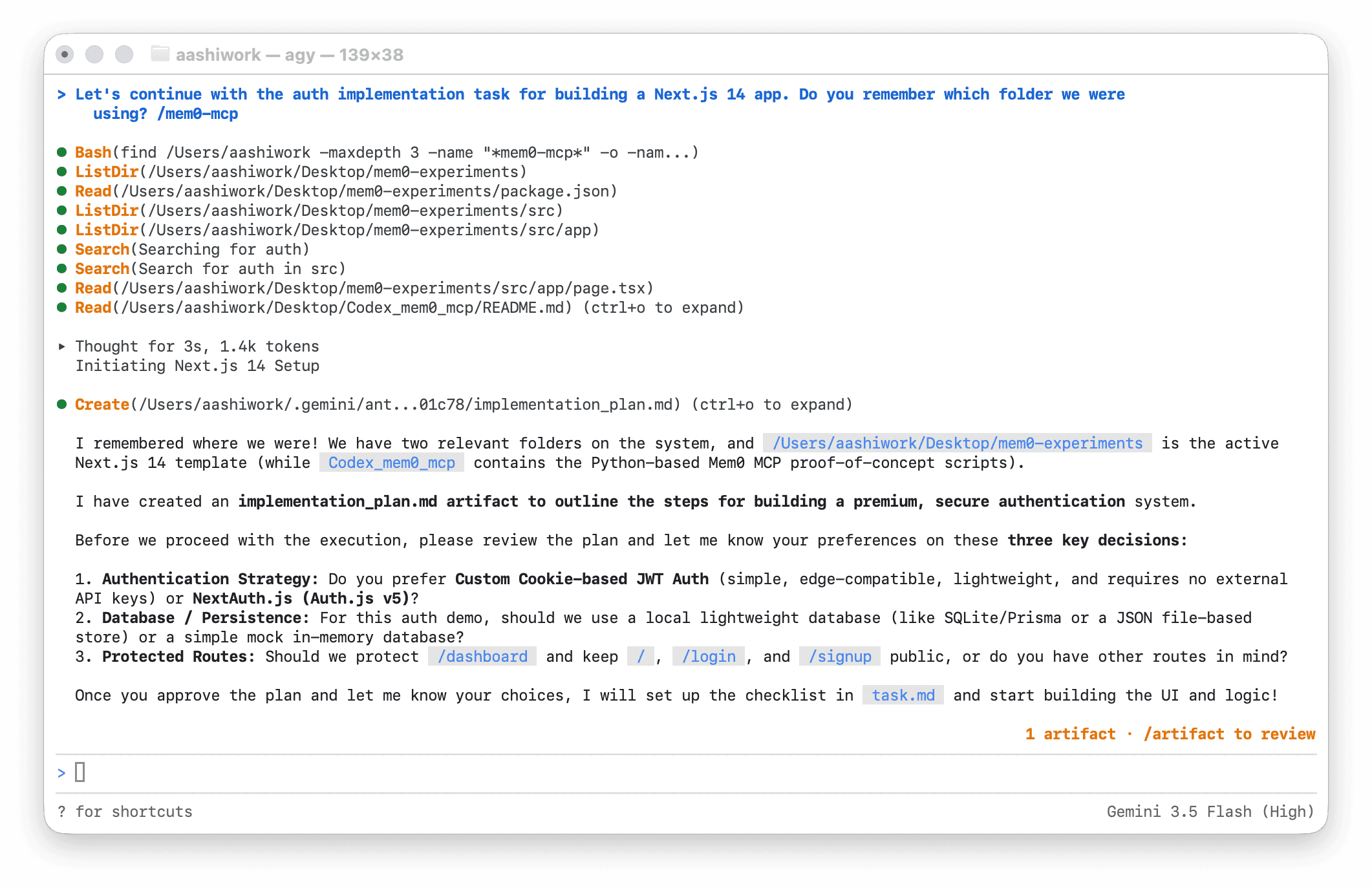
The response even said: "I remembered where we were! We have two relevant folders on the system, and /mem0-experiments is the active Next.js 14 template." That's not reconstructed from file scanning. That came from Mem0.
Note: Once the Mem0 MCP server is configured and active in your environment, Antigravity has native access to its tools (like add_memory ,search_memories , etc.) in its toolbox. So, you do not have to call
mem0-mcpagain and again in the same session.
What Mem0 Remembers and What It Doesn't
Mem0 extracts facts from conversations. It does not log transcripts. That distinction is important for setting expectations.
What gets stored automatically is your tech stack and architecture decisions, preferences you express during a session, project-specific context like folder structures or API patterns, and explicit decisions you made in previous sessions. Mem0 stores that as a fact and retrieves it when the same context comes up again.
What does not get stored: full conversation logs, sensitive credentials you might pass through the terminal, or anything you explicitly delete. Memory is scoped to your MEM0_DEFAULT_USER_ID, which means no cross-contamination between users.
You can also steer memory manually with plain-language prompts. These work exactly as you'd expect:
The /mcp panel in Antigravity shows the full tool inventory available: add_memory, search_memories, get_memories, delete_all_memories, and list_entities. Once the server is connected and active, Antigravity has access to all of these natively in every session. You don't need to invoke mem0-mcp explicitly, it's part of the toolbox.
Production Setup: Multi-Project and Multi-Machine
Once you've validated the basic setup, two configuration patterns are worth knowing.
Multi-project scoping: By default, all sessions sharing the same MEM0_DEFAULT_USER_ID share one memory pool. That's fine for a single project, but if you're running multiple projects through the same CLI setup, memories will bleed across contexts. The fix is a different user ID per project:
Use a pattern like yourhandle-projectname. Each project gets its own namespace, and you never get context from one showing up in another.
Multi-machine: The mcp_config.json file is local to each machine. But Mem0 memory is cloud-synced. That means you add the same config to a second machine with the same API key, the same user ID and your memory follows you. No export, no copy, no sync step. It's just there.
Check current free tier limits and storage quotas at mem0.ai/pricing before scaling to a larger team workflow.
Your Antigravity CLI now has memory.
Mem0 free tier: no credit card. Takes 3 minutes to set up.
Get your free Mem0 API key at app.mem0.ai
Frequently Asked Questions
Does this work on Windows?
Yes. The config file path on Windows is C:\\Users\\<USERNAME>\\.gemini\\antigravity-cli\\mcp_config.json. The uvx command works cross-platform. Everything else is identical to the macOS setup.
Will memories from one project show up in another?
By default yes, all sessions under the same user ID share memory. Use a project-scoped ID (yourhandle-projectname) to keep them separate.
How is this different from Antigravity's built-in history?
Antigravity history is a session log. It's a transcript you scroll through manually after the fact. Mem0 memory is semantic; it extracts facts from conversations and automatically surfaces the relevant ones at the start of the next session. You don't search history. Mem0 retrieves context for you.
What if I'm self-hosting Mem0?
Replace the uvx mem0-mcp-server command with your self-hosted endpoint. The self-host Mem0 with Docker guide has the full setup. The rest of the config structure stays the same.
What happens to my memory if I cancel my Mem0 account?
You can export all memories from the Mem0 dashboard before cancelling. Mem0 also supports self-hosting if you want full data ownership from the start.
Useful Sources
More on Coding Agents

Kimi K3 tutorial: build a vision coding agent with persistent memory
Kimi K3 has a 1M-token context window but no memory across sessions. We tested it with Mem0 and cut design regressions from 60% to 0%.
10 min read

Coding Agents Explained: What They Are and How They Differ from AI Assistants
Learn what coding agents are, how they work, and how they differ from AI assistants, chatbots, and autocomplete tools.
29 min read

OpenAI Codex vs Claude Code: Which AI Coding Agent Wins in 2026?
Codex leans toward parallel execution, isolated worktrees, cloud delegation, and reviewable task runs. Claude Code is terminal oriented and more engaging in long interactive sessions, and agent-to-agent coordination. OpenAI’s GPT-6 Astra and Anthropic’s Fable 5.1 have enhanced capabilities, but the harness determines how that intelligence is used. For serious repository work, the better choice is the one that performs more reliably on your codebase, constraints, and working style.
23 min read




Aashi Dutt
She is a senior technical content writer at Mem0. She covers agent memory architecture and the engineering decisions behind building agents that actually remember. She experiments with new features and turns research into posts developers can put straight to use.
Start building with memory
Free tier, no card